> ## Documentation Index
> Fetch the complete documentation index at: https://subframe-59800133-apg-edit-updates.mintlify.site/llms.txt
> Use this file to discover all available pages before exploring further.
# Prototype with AI
> Create interactive prototypes with AI-powered code generation.
Prototypes let you build real web apps from your page designs, synced with your design system. They are created from screens in a [flow](/learn/flows/flows) by chatting and adding annotations.
## Creating a new prototype
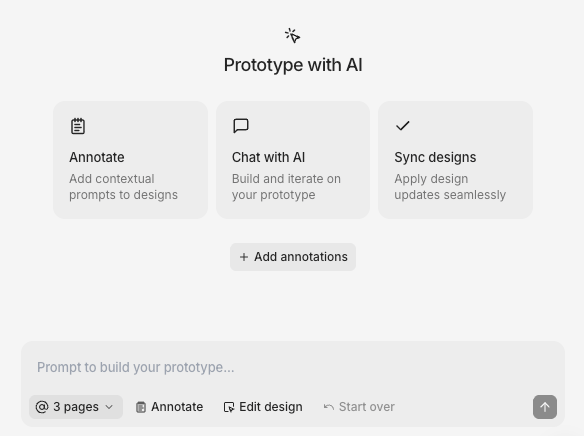 1. Create a new [flow](/learn/flows/flows)
2. Design your screens in design mode
3. Add [annotations](/learn/prototype-mode/annotations) describing functionality
4. Click **Prototype** in navbar, or click **New prototype** under your flow in the pages sidebar
5. Type your first message in chat, then click **Send**
AI may take a few minutes to create a prototype and will preview it when finished.
## Iterating on prototypes
There are two ways to iterate on your prototype:
* **Chat** — Use prototype chat to add features, fix bugs, or refine interactions
* **Design updates** — Make changes in design mode, then apply them to your prototype
#### Chat
1. Create a new [flow](/learn/flows/flows)
2. Design your screens in design mode
3. Add [annotations](/learn/prototype-mode/annotations) describing functionality
4. Click **Prototype** in navbar, or click **New prototype** under your flow in the pages sidebar
5. Type your first message in chat, then click **Send**
AI may take a few minutes to create a prototype and will preview it when finished.
## Iterating on prototypes
There are two ways to iterate on your prototype:
* **Chat** — Use prototype chat to add features, fix bugs, or refine interactions
* **Design updates** — Make changes in design mode, then apply them to your prototype
#### Chat
 1. Open prototype
2. Type your prompt in the chat input
3. Press Enter to send
#### Making design updates
1. Open prototype
2. Type your prompt in the chat input
3. Press Enter to send
#### Making design updates
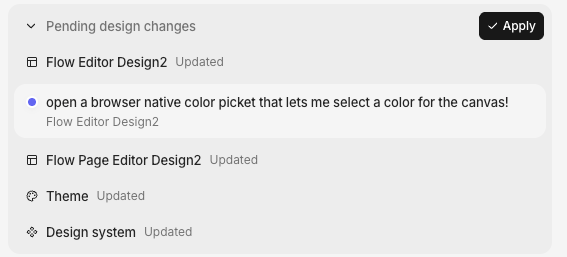 1. Make design changes or update annoations
2. Navigate to prototype mode
3. Click **Apply** in the chat bar
AI will update the code to match your new design.
Design changes don't sync from prototype back to pages.
#### Getting unstuck
If your prototype isn't working as expected, you have two options:
* **Start over** — Click **Start over** in the chat bar to regenerate a prototype from scratch using your current annotations
* **Revert to previous version** — Find a version in your conversation and click on to revert to that version
## Viewing code
1. Open prototype mode
2. Find version you want to inspect, click on
3. You should now see the code
## Downloading code
1. Open prototype mode
2. Find version you want to export, click on
3. Top-right, click on **Download**
This will download your prototype code as a Vite app in a zip file.
## Sharing prototypes
1. Click the **Share** button at the top of the left panel, next to your avatar
2. Toggle on **Share link to latest prototype**
3. Copy and paste the generated link
## Best practices for design
* Create a new screen for each page (including dialogs) and states (e.g. loading, empty state, selected tabs)
* Subframe prototyping is meant for smaller prototypes. Avoid prototypes larger than 6+ designed screens—it will get slow
* If you need to create larger prototypes, try [exporting to code](/installation) and using Claude Code, Cursor, or Codex
## FAQ
Not yet. To keep your designs in sync with your prototype, we recommend using chat and annotations for updating functionality, and applying changes from design mode for updating designs.
1. Create two screens: one with the button, one with the dialog open
2. Add an [annotation](/learn/prototype-mode/annotations) on the button to open the dialog on click
1. Make design changes or update annoations
2. Navigate to prototype mode
3. Click **Apply** in the chat bar
AI will update the code to match your new design.
Design changes don't sync from prototype back to pages.
#### Getting unstuck
If your prototype isn't working as expected, you have two options:
* **Start over** — Click **Start over** in the chat bar to regenerate a prototype from scratch using your current annotations
* **Revert to previous version** — Find a version in your conversation and click on to revert to that version
## Viewing code
1. Open prototype mode
2. Find version you want to inspect, click on
3. You should now see the code
## Downloading code
1. Open prototype mode
2. Find version you want to export, click on
3. Top-right, click on **Download**
This will download your prototype code as a Vite app in a zip file.
## Sharing prototypes
1. Click the **Share** button at the top of the left panel, next to your avatar
2. Toggle on **Share link to latest prototype**
3. Copy and paste the generated link
## Best practices for design
* Create a new screen for each page (including dialogs) and states (e.g. loading, empty state, selected tabs)
* Subframe prototyping is meant for smaller prototypes. Avoid prototypes larger than 6+ designed screens—it will get slow
* If you need to create larger prototypes, try [exporting to code](/installation) and using Claude Code, Cursor, or Codex
## FAQ
Not yet. To keep your designs in sync with your prototype, we recommend using chat and annotations for updating functionality, and applying changes from design mode for updating designs.
1. Create two screens: one with the button, one with the dialog open
2. Add an [annotation](/learn/prototype-mode/annotations) on the button to open the dialog on click