> ## Documentation Index
> Fetch the complete documentation index at: https://subframe-59800133-apg-edit-updates.mintlify.site/llms.txt
> Use this file to discover all available pages before exploring further.
> Create clickable prototypes in preview mode.
# Interactions
Interactions let you create clickable prototypes with page navigation and interactions on click, hover, and right click in preview mode — without using AI.
Use it to connect pages, open overlays (dialogs and drawers), show popovers, tooltips, dropdowns, and context menus.
## Adding an interaction
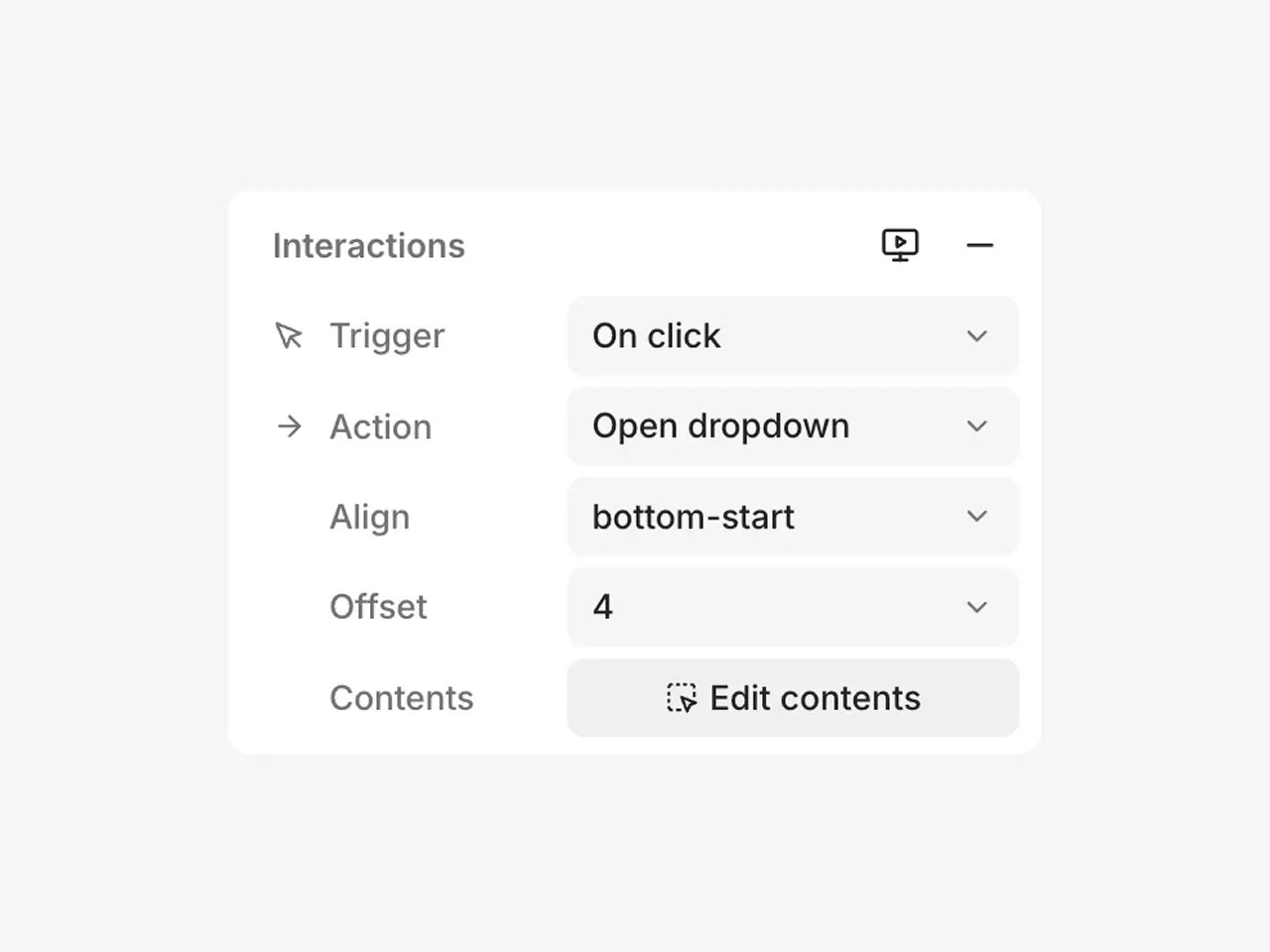 1. Select the element you want to make interactive.
2. In the inspector, find the Interactions section and click the + icon.
3. Choose a trigger, an action, and configure the destination or alignment.
## Triggers and actions
1. Select the element you want to make interactive.
2. In the inspector, find the Interactions section and click the + icon.
3. Choose a trigger, an action, and configure the destination or alignment.
## Triggers and actions
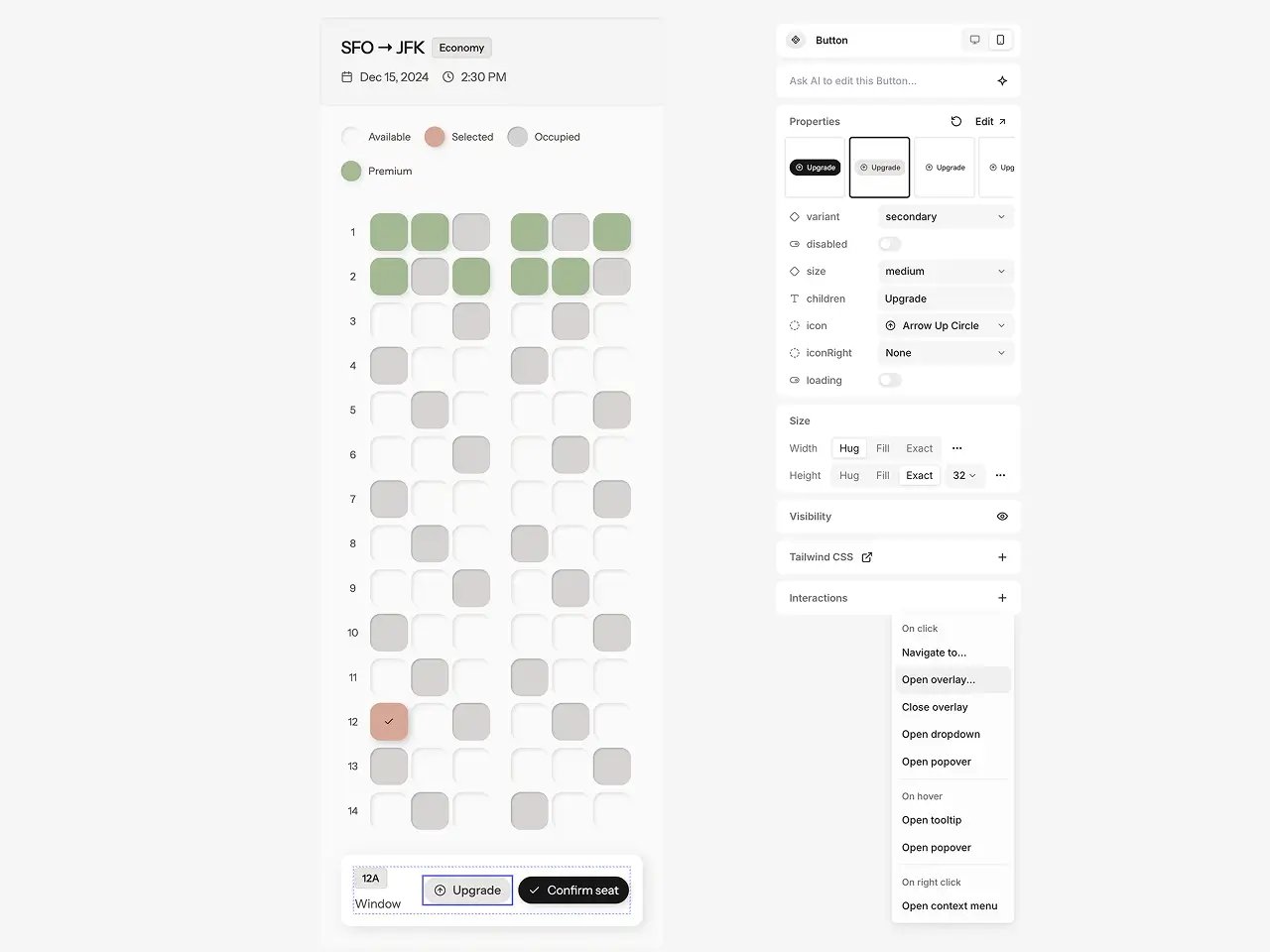 ### On click
* **Navigate to...** — Opens a different page.
* **Open overlay...** — Opens a page as an overlay (dialog or drawer) on top of the current page.
* **Close overlay** — Closes the currently open overlay.
* **Open dropdown** — Opens a dropdown menu anchored to the element.
* **Open popover** — Opens a popover with custom contents anchored to the element.
Tip: Make sure pages opened as an overlay use a dialog or drawer layout to render properly over the existing page.
### On hover
* **Open tooltip** — Shows a tooltip on hover.
* **Open popover** — Shows a popover on hover with custom contents.
### On right click
* **Open context menu** — Opens a context menu at the cursor position.
## Editing popover and overlay contents
Click **Edit contents** to open the popover, tooltip, dropdown, or context menu contents in the editor. Design the contents the same way you would any other element on a page.
For overlays, select the destination page and design it using a dialog or drawer layout.
## Previewing interactions
### On click
* **Navigate to...** — Opens a different page.
* **Open overlay...** — Opens a page as an overlay (dialog or drawer) on top of the current page.
* **Close overlay** — Closes the currently open overlay.
* **Open dropdown** — Opens a dropdown menu anchored to the element.
* **Open popover** — Opens a popover with custom contents anchored to the element.
Tip: Make sure pages opened as an overlay use a dialog or drawer layout to render properly over the existing page.
### On hover
* **Open tooltip** — Shows a tooltip on hover.
* **Open popover** — Shows a popover on hover with custom contents.
### On right click
* **Open context menu** — Opens a context menu at the cursor position.
## Editing popover and overlay contents
Click **Edit contents** to open the popover, tooltip, dropdown, or context menu contents in the editor. Design the contents the same way you would any other element on a page.
For overlays, select the destination page and design it using a dialog or drawer layout.
## Previewing interactions
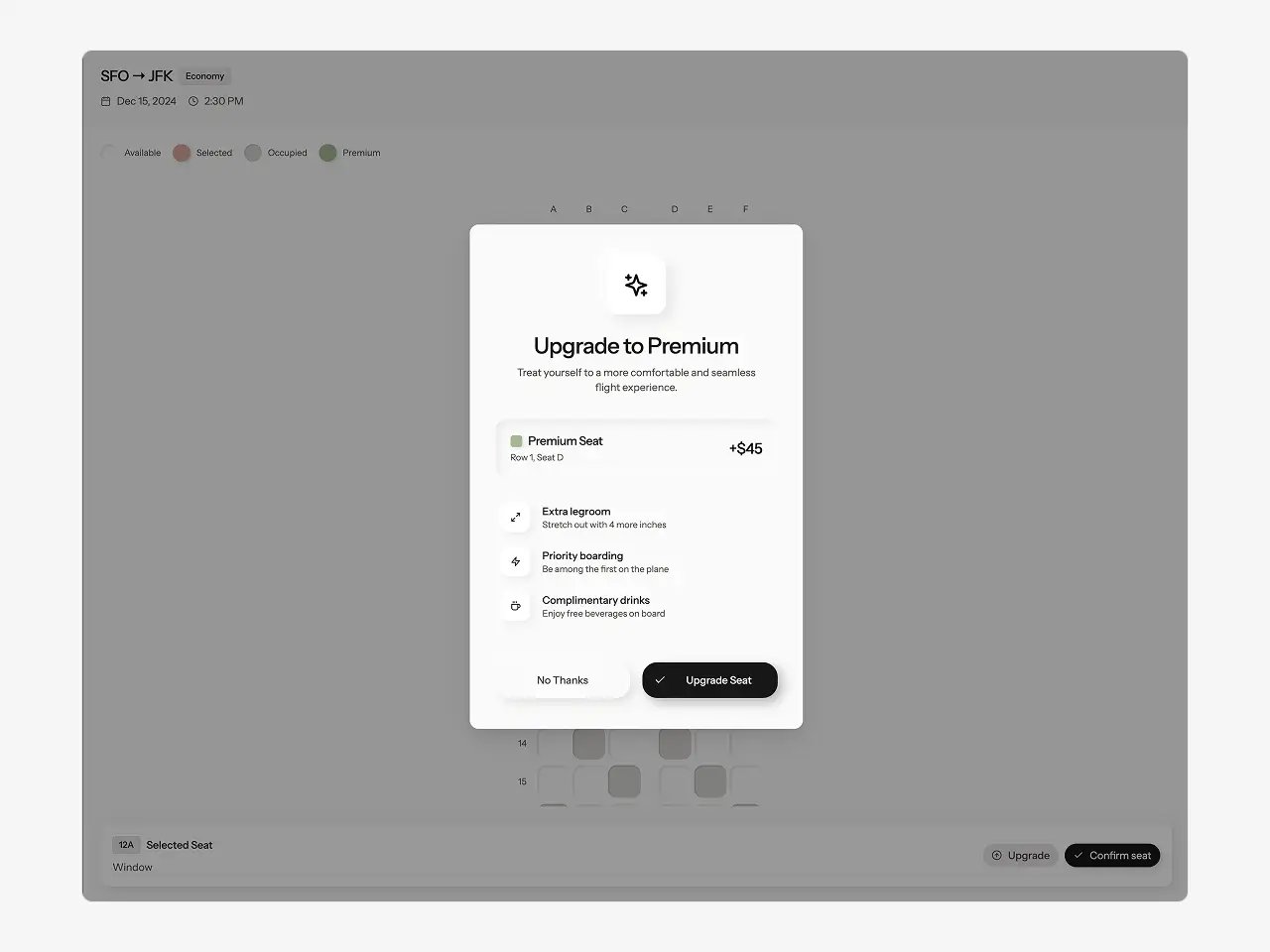 Try out interactions in preview mode. Click the preview icon in the navbar or in the Interactions section to enter preview and test your interactions.
### Limitations
* Each element supports one interaction. You cannot stack multiple triggers (e.g. on hover + on click) on the same element. Wrap elements in stacks with different interactions instead.
* Preview interactions are separate from Prototype mode. In the future, interactions will automatically feed into AI-generated prototypes as prompt annotations.
* Click-through prototypes are best for simple navigation flows, opening overlays, and testing popover behavior. For complex interactions like form handling, state management, and dynamic data, use [Prototype with AI](/learn/prototype-mode/overview).
Try out interactions in preview mode. Click the preview icon in the navbar or in the Interactions section to enter preview and test your interactions.
### Limitations
* Each element supports one interaction. You cannot stack multiple triggers (e.g. on hover + on click) on the same element. Wrap elements in stacks with different interactions instead.
* Preview interactions are separate from Prototype mode. In the future, interactions will automatically feed into AI-generated prototypes as prompt annotations.
* Click-through prototypes are best for simple navigation flows, opening overlays, and testing popover behavior. For complex interactions like form handling, state management, and dynamic data, use [Prototype with AI](/learn/prototype-mode/overview).